Capturing Network Credentials with Responder

Before completing this lab, ensure you are working in a legal and safe environment. If you haven't already, you can set up your own hacking lab by completing our first tutorial:
Setting Up Your Free Virtual Hacking Environment
Now we are going to explore one of the most important internal network attack concepts in cybersecurity:
Responder
And honestly, this is where beginners start understanding why internal corporate networks can become dangerous very quickly.
Because many organizations focus heavily on:
- firewalls,
- perimeter defenses,
- and internet security,
while internal authentication traffic remains surprisingly vulnerable.
What Is Responder?
Responder is a network poisoning and credential capture tool included in Kali Linux.
It is commonly used during:
- internal penetration tests,
- Active Directory assessments,
- and Windows network security evaluations.
Responder listens for certain network requests and attempts to trick systems into authenticating against the attacker machine.
This can expose:
- usernames,
- NTLM hashes,
- and authentication traffic.
Important Beginner Concept
Responder does not “steal passwords” directly.
Instead, it captures:
Authentication Hashes
These hashes may later be:
- analyzed,
- audited,
- or tested in password cracking labs.
Understanding authentication flow is the real lesson here.
Our Lab Setup
We will use:
- Kali Linux = attacker machine
- Windows VM = target machine
You can use:
- Windows 10,
- Windows 11,
- or Windows Server
inside your isolated lab environment.
Step 1 – Start Your Virtual Machines
Open VMware.
Start:
- Kali Linux
- Your Windows virtual machine
Wait for both systems to fully boot.
Step 2 – Verify Both Systems Are On The Same Network
Inside Kali Linux, run:
ip addr
Look for your IP address.
Example:
192.168.182.128
Now inside Windows:
Open Command Prompt:
ipconfig
Example:
192.168.182.135
Both systems should share the same network range.
Step 3 – Verify Connectivity
From Kali Linux:
ping WINDOWS-IP
Example:
ping 192.168.182.135
If replies appear, networking is working correctly.
Stop the ping:
CTRL + C
Step 4 – Verify Responder Is Installed
Responder is usually included in Kali Linux.
Check by running:
responder
If installed, usage information should appear.
If missing:
sudo apt update
sudo apt install responder
Step 5 – Understanding LLMNR
Windows networks often use protocols like:
- LLMNR
- NBT-NS
- mDNS
These protocols help systems locate devices on local networks.
But they also create opportunities for attackers.
What Is LLMNR?
LLMNR stands for:
Link-Local Multicast Name Resolution
When a Windows system cannot find a host through DNS, it may ask the local network:
Who has this hostname?
Responder abuses this behavior.
Step 6 – Start Responder
Inside Kali Linux, identify your network interface:
ip addr
Common interfaces include:
eth0
ens33
Now start Responder:
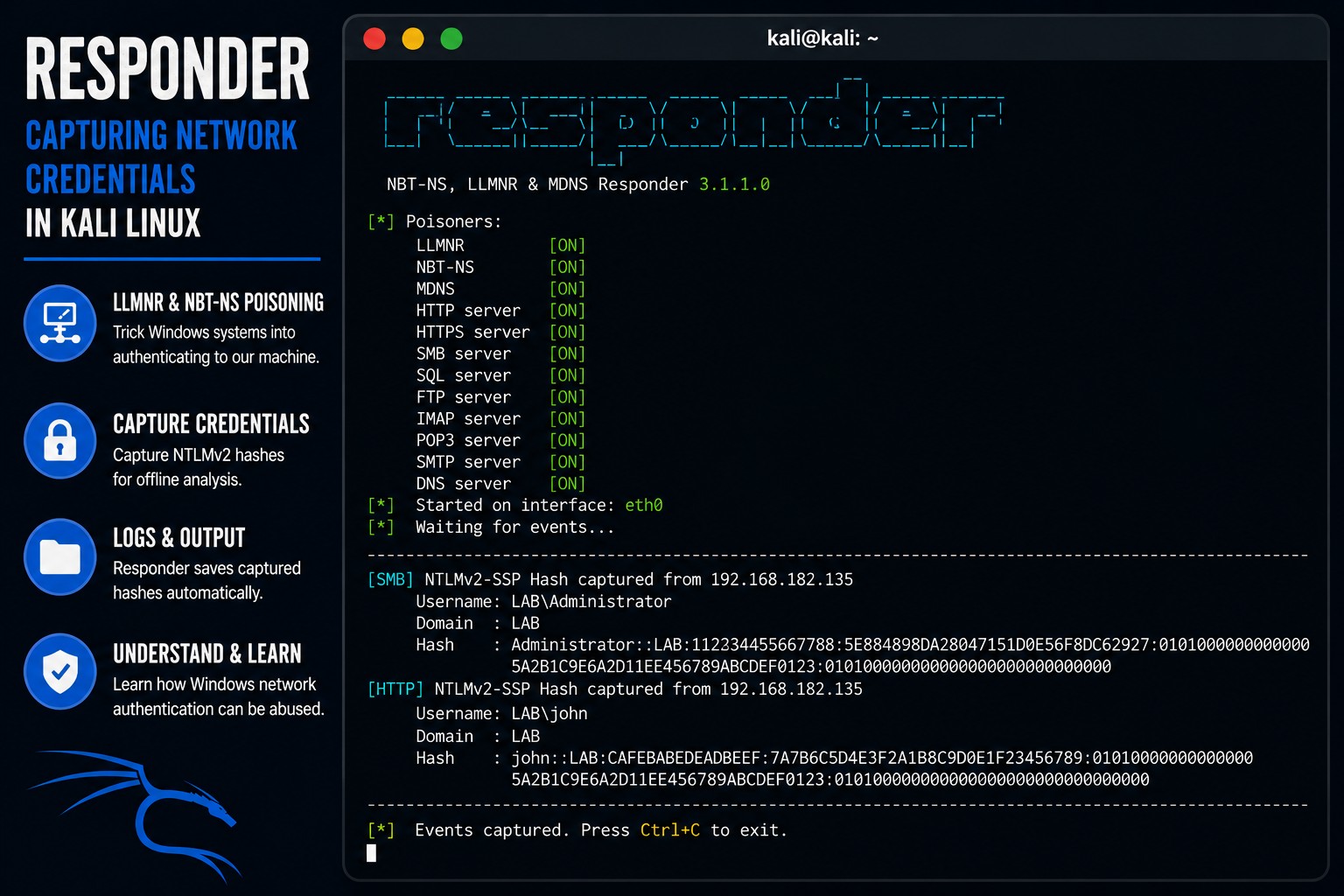
sudo responder -I eth0
Replace:
eth0
with your actual interface if needed.
Responder is now listening for network requests.
Step 7 – Understanding What Responder Is Doing
Responder is now:
- listening for broadcast traffic,
- responding to certain requests,
- and pretending to be requested services.
This is called:
Poisoning
Because the attacker is providing malicious responses to network requests.
Step 8 – Trigger Authentication Traffic
Inside the Windows machine:
Open File Explorer.
In the address bar, enter a fake network share:
\\\\fake-share
Or:
\\\\random-name
Press Enter.
Windows will attempt network authentication.
Step 9 – Observe Captured Hashes
Inside Kali Linux, Responder may capture authentication traffic.
You may see something like:
[SMB] NTLMv2-SSP Hash captured
Example:
Username: LAB\\Administrator
Responder may save captured hashes automatically.
Step 10 – Understand NTLM Authentication
Windows commonly uses:
NTLM Authentication
NTLM uses challenge-response authentication instead of transmitting plaintext passwords.
This is better than plaintext authentication.
But weak passwords can still create problems.
Step 11 – Locate Captured Hashes
Responder often stores hashes here:
/usr/share/responder/logs/
View files:
ls /usr/share/responder/logs/
You may see captured hash files.
Step 12 – View The Captured Hash
Example:
cat /usr/share/responder/logs/SMB-NTLMv2-SSP-192.168.182.135.txt
You may see:
- usernames,
- domains,
- and NTLM hashes.
Step 13 – Understand Why Hashes Matter
Attackers often attempt to:
- crack weak hashes,
- reuse credentials,
- or authenticate elsewhere.
This is why:
- password strength,
- MFA,
- and network segmentation
matter enormously.
Step 14 – Stop Responder
Stop the tool:
CTRL + C
Always stop poisoning tools when finished testing.
Step 15 – Understanding Why Internal Networks Matter
Many organizations assume:
“Internal traffic is trusted.”
That assumption becomes dangerous.
Because once attackers gain internal access:
- broadcasts,
- authentication,
- and weak configurations
can become valuable attack paths.
Step 16 – Understanding Broadcast Traffic
Protocols like:
- LLMNR,
- NBT-NS,
- and mDNS
use broadcast or multicast communication.
Broadcast traffic is visible to many systems on the local network.
This creates opportunities for spoofing and poisoning attacks.
Step 17 – Understand Why DNS Matters
Proper DNS configuration reduces reliance on:
- LLMNR,
- NBT-NS,
- and fallback name resolution.
Many organizations disable LLMNR entirely for security reasons.
Step 18 – Common Beginner Mistakes
Forgetting Interface Names
Verify your actual network adapter.
Testing on Public Networks
Never run poisoning tools on unauthorized networks.
Use isolated lab environments only.
Thinking Hashes Equal Plaintext Passwords
Hashes are not the same as plaintext credentials.
Ignoring Authentication Concepts
Understanding:
- challenge-response,
- hashes,
- and authentication flow
matters far more than memorizing commands.
Step 19 – Useful Responder Commands
Start Responder
sudo responder -I eth0
View interfaces
ip addr
View logs
ls /usr/share/responder/logs/
Read captured hash file
cat HASHFILE.txt
Step 20 – Why Responder Matters
Responder teaches critical concepts:
- Windows authentication,
- NTLM hashes,
- internal network attacks,
- broadcast traffic,
- poisoning attacks,
- and authentication weaknesses.
And honestly, understanding internal network behavior is incredibly important in cybersecurity.
Because attackers often target:
- trust relationships,
- authentication systems,
- and weak internal assumptions.
Step 21 – Defensive Lessons
The real lesson is not:
- “how to capture hashes.”
The real lesson is understanding:
- why internal trust becomes dangerous,
- why fallback protocols matter,
- why strong passwords matter,
- and why network hardening matters.
Organizations commonly defend against these attacks by:
- disabling LLMNR,
- enforcing MFA,
- using strong passwords,
- segmenting networks,
- and improving monitoring.
Closing Thoughts
Responder is one of the most educational tools for understanding Windows network authentication.
Because it demonstrates how:
- broadcasts,
- trust assumptions,
- and weak configurations
can create security problems inside internal networks.
The real value is learning:
- how authentication works,
- how Windows networking behaves,
- and why internal security matters just as much as perimeter security.
This concludes our current Kali Linux hacking lab tutorial series.
In future tutorials, we may continue exploring:
- Active Directory,
- privilege escalation,
- web application testing,
- and defensive cybersecurity concepts.
Please Subscribe to keep up with future tutorials, and always feel free to contact me or leave a comment below.