Essential Linux Commands

Before completing this lab, ensure you are working in a legal and safe environment. If you haven't already, you can set up your own hacking lab by completing our first tutorial:
Setting Up Your Free Virtual Hacking Environment
Now it is time to actually start using Linux properly.
And honestly, this is where most beginners fail.
A lot of people want to jump straight into “hacking tools” without understanding the operating system they are running those tools on. That is a mistake.
If you do not understand:
- how Linux files work,
- how permissions work,
- how networking works,
- how processes work,
- or how the terminal works,
…then you are mostly just copy-pasting commands from random YouTube videos.
That is not cybersecurity.
That is pretending.
The good news is Linux is not nearly as complicated as people make it sound once you start using it every day.
This tutorial will walk you through the most important Linux commands and concepts you will constantly use inside Kali Linux.
Step 1 – Opening The Terminal
Boot up your Kali Linux VM inside VMware and log in.
Once you are on the desktop, open the terminal.
You can usually do this several ways:
- Click the terminal icon
- Right-click the desktop and select terminal
- Press:
CTRL + ALT + T
The terminal is where most real work happens in Linux.
Graphical interfaces are useful, but most cybersecurity tools are built around the command line.
Step 2 – Understanding Your Prompt
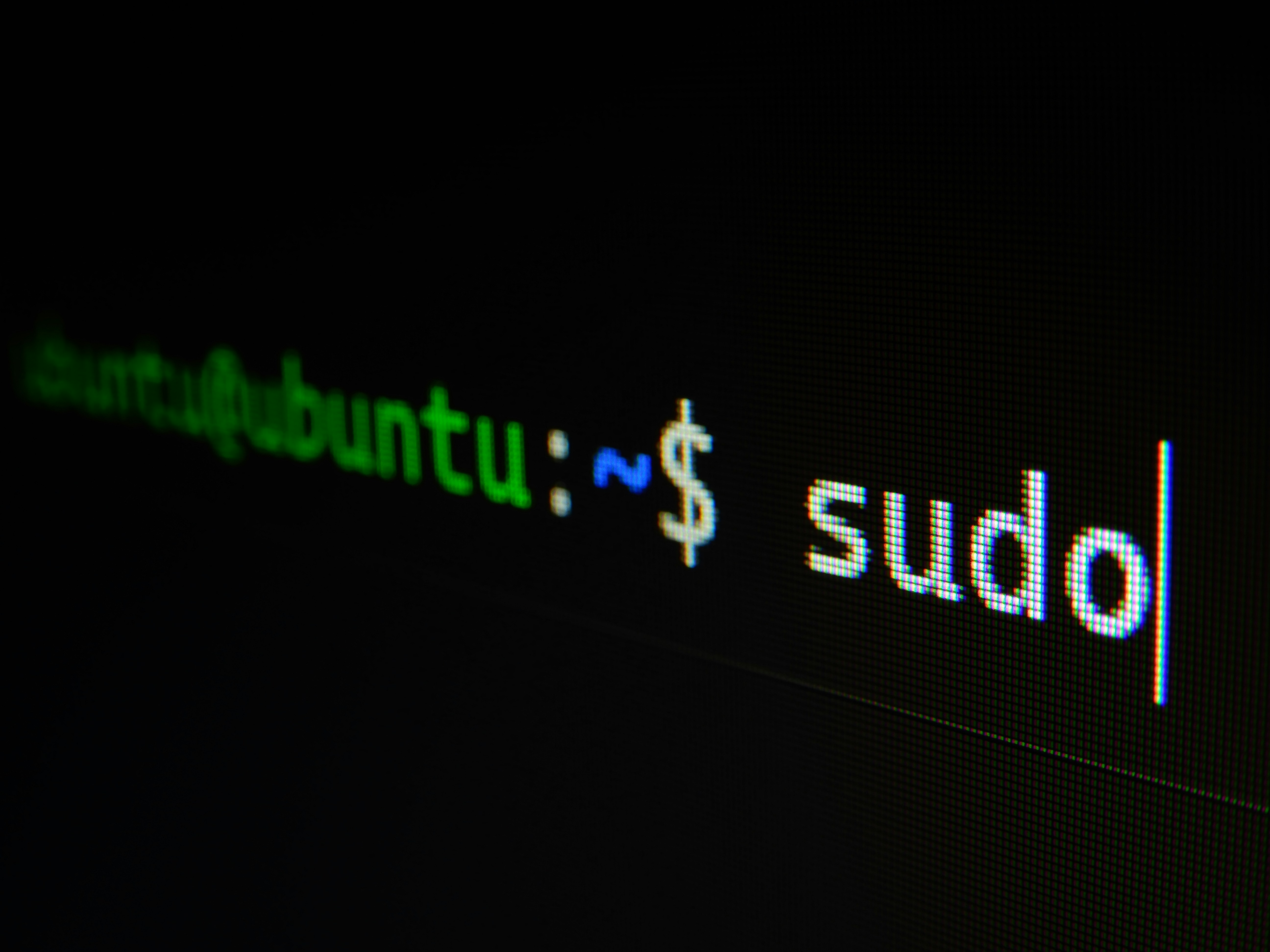
You will usually see something like this:
secret-lab@kali:~$
This tells you several things:
secret-lab= your usernamekali= your computer hostname~= your current directory (home folder)$= standard user prompt
If you are logged in as the root user, you will often see:
#
instead of:
$
That means you have elevated privileges.
Step 3 – Finding Out Where You Are
Use this command:
pwd
This stands for:
print working directory
It shows your current location in the Linux filesystem.
Example output:
/home/secret-lab
Linux systems are heavily directory-based, so understanding where you are matters constantly.
Step 4 – Listing Files and Folders
Use:
ls
This lists files and folders in the current directory.
Useful variations:
Show detailed information
ls -l
Show hidden files
ls -a
Combine both
ls -la
You will use this constantly.
Step 5 – Navigating Directories
Use:
cd
This stands for:
change directory
Move into a folder
cd Documents
Move back one directory
cd ..
Return home
cd ~
Go to root directory
cd /
The filesystem structure matters a lot in Linux.
You should learn common directories early.
Step 6 – Understanding Important Linux Directories
Home Directory
/home/
Contains user files.
Example:
/home/secret-lab
Root Directory
/
Top-level filesystem location.
Everything branches from here.
Configuration Files
/etc/
System configuration files live here.
Temporary Files
/ tmp/
Temporary data storage.
Executable Programs
/bin/
Basic Linux commands.
User Programs
/usr/
Installed applications and libraries.
Logs
/var/log/
System logs.
Very important for troubleshooting and investigations.
Step 7 – Creating Files and Folders
Create a folder
mkdir hacking-lab
Move into it
cd hacking-lab
Create a file
touch notes.txt
Verify it exists
ls
Step 8 – Viewing File Contents
Display file contents
cat notes.txt
View longer files page-by-page
less notes.txt
Inside less:
- Use arrow keys to scroll
- Press
qto quit
Read the beginning of a file
head notes.txt
Read the end of a file
tail notes.txt
This becomes extremely useful when monitoring logs.
Step 9 – Editing Files
Kali includes several text editors.
A beginner-friendly one is:
nano
Example:
nano notes.txt
Type whatever you want.
To save:
CTRL + O
Press Enter.
To exit:
CTRL + X
You will edit files constantly in Linux.
Step 10 – Copying, Moving, and Deleting Files
Copy a file
cp notes.txt backup.txt
Move or rename a file
mv backup.txt old-notes.txt
Delete a file
rm old-notes.txt
Delete a directory
rmdir test-folder
Delete recursively
rm -r foldername
Be careful with rm.
Linux usually does not ask for confirmation.
Once deleted, files are often gone.
Step 11 – Understanding Permissions
Linux permissions are critical in cybersecurity.
View permissions:
ls -l
Example:
-rwxr-xr--
This looks confusing at first.
Breakdown:
- Owner permissions
- Group permissions
- Other user permissions
Permission letters:
r= readw= writex= execute
Change permissions
chmod +x script.sh
Makes a script executable.
Change ownership
sudo chown user:user filename
Permissions are a massive part of Linux security.
Step 12 – Understanding sudo
You will constantly see:
sudo
This means:
superuser do
It temporarily runs a command with administrative privileges.
Example:
sudo apt update
Linux protects important system files from normal users.
That is a good thing.
Step 13 – Installing Software
Kali uses the APT package manager.
Update package lists
sudo apt update
Upgrade installed packages
sudo apt upgrade
Install software
sudo apt install nmap
Remove software
sudo apt remove nmap
You should update Kali regularly.
Outdated systems create problems fast.
Step 14 – Finding Files
Search for files
find / -name notes.txt
Search inside files
grep password notes.txt
This searches for the word:
password
inside the file.
grep becomes incredibly important later.
Step 15 – Networking Basics
View IP address
ip addr
Test connectivity
ping google.com
Press:
CTRL + C
to stop it.
View network connections
ss -tulnp
This shows listening services and ports.
Very useful in security work.
Step 16 – Process Management
View running processes
ps aux
Interactive process viewer
top
Kill a process
kill PID
Replace PID with the process ID.
Example:
kill 1337
Processes matter heavily in Linux security and malware analysis.
Step 17 – Downloading Files
Download with wget
wget https://example.com/file.txt
Download with curl
curl -O https://example.com/file.txt
These tools are used constantly in Linux environments.
Step 18 – Understanding Hidden Files
Files beginning with:
.
are hidden.
Example:
.bashrc
Show hidden files:
ls -la
Attackers, administrators, and normal applications all use hidden files.
Step 19 – Command History
Linux saves your command history.
View it:
history
Re-run previous commands with:
!number
Example:
!45
Be careful with this.
Step 20 – Reading Manual Pages
One of the most important Linux skills is learning how to read documentation.
Use:
man COMMAND
Example:
man ls
Press:
q
to quit.
Most beginners skip documentation.
That is why most beginners stay beginners.
Step 21 – Understanding Pipes
Pipes allow commands to work together.
Example:
ls -la | grep notes
This sends output from one command into another.
Linux becomes extremely powerful once you understand pipes.
Step 22 – Understanding Redirection
Save output to a file
ip addr > network.txt
Append output
echo "new line" >> network.txt
This becomes useful for logging and reporting.
Step 23 – Essential Beginner Mindset
Do not try to memorize every command immediately.
Nobody does.
Even experienced Linux users constantly:
- check documentation,
- use Google,
- review syntax,
- and troubleshoot mistakes.
The goal is repetition.
The more you use Linux, the more natural it becomes.
Common Beginner Mistakes
Copy-Pasting Blindly
This is one of the worst habits in cybersecurity.
Understand what commands actually do before running them.
Running Everything as Root
Do not get lazy with permissions.
Only use elevated privileges when necessary.
Ignoring Documentation
Read tool documentation.
Seriously.
Breaking Your VM
You will break things eventually.
That is normal.
That is why we built a virtual lab.
Closing Thoughts
Linux is one of the core foundations of cybersecurity.
Almost every area of ethical hacking eventually depends on understanding:
- Linux systems
- Linux networking
- Linux permissions
- Linux processes
- Linux filesystems
- Linux command-line tools
The terminal may feel uncomfortable at first, but after enough repetition, it becomes second nature.
And honestly, once you get comfortable with Linux, going back to doing technical work only through graphical interfaces feels painfully slow.
In the next tutorials, we will continue building real-world cybersecurity skills inside our Kali Linux lab.
Please Subscribe to keep up with future tutorials, and always feel free to contact me or leave a comment below.